
View Case Summary
To view the details of any case, click on the candidate name hyperlinked on the case list. In the Case Summary, you can easily view the status of each instance within a case, deep dive into history for each instance and add new searches, even when a case is in progress.
The Case Summary has two primary sections, the overview and case details:

Instances with a red dot on the left side are those pending review or incomplete. Instances with a green dot are completed. If there is one instance within an activity type (i.e. one of 3 employment verifications) that is incomplete, the dot will appear red until all instances within the activity are complete.
To access details from any instance within the case, click on the name of each instance.
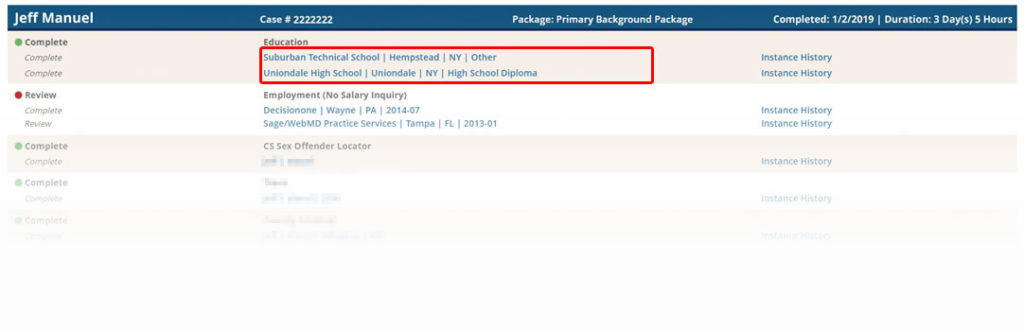
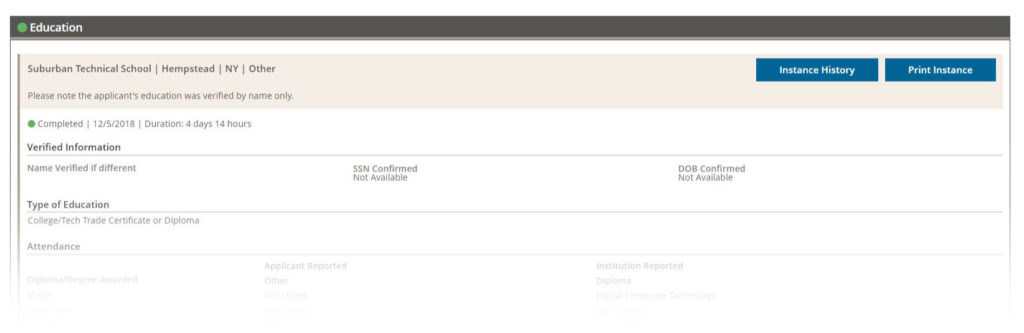
The link takes you to the section of the summary containing instance details. From there, you can print the details related to that instance only.
Case Summary Action Bar
At the top of each Case Summary, you’ll see a case-specific call-to-action bar. Actions from the main dashboard (Needs Attention, On Hold, Ready for Review) will appear here at this case-level view. Once a case is final, you will see a “Print Final Report” button at this action bar.

Case and Instance-Level History Log
The case summary includes several enhancements intended for full transparency.
Click the “History” button in the top call-to-action bar for all case-level milestones, from ordering to completion.
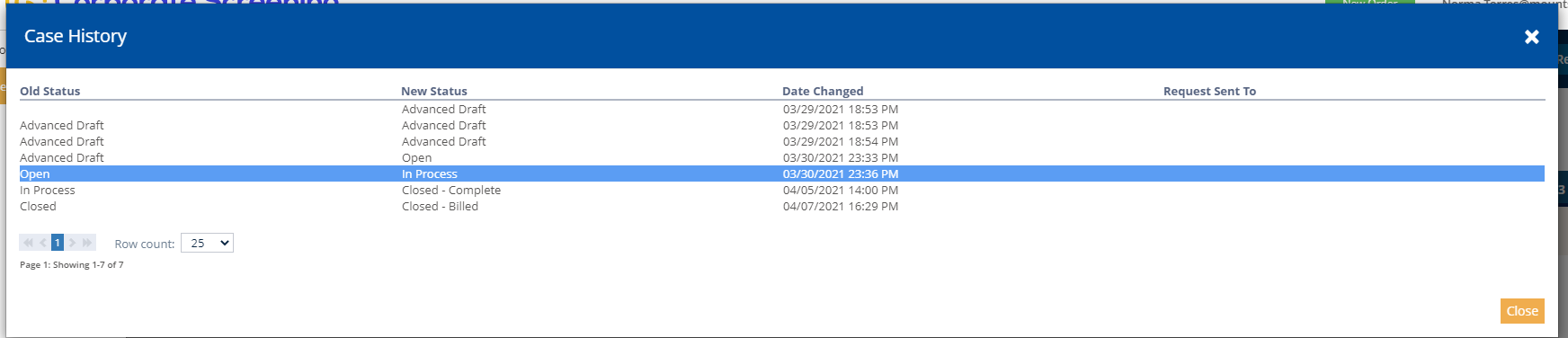
In addition, each instance within a case (i.e. each education or employment verification) contains its own action history log. Click the “history” link (under the “Add new searches button”) to access this information.

Each instance has its own action log, so you can stay up-to-date on a case’s progress. To close out of the history pop-up box, click the “back” button or the “X” on the top right of the box.
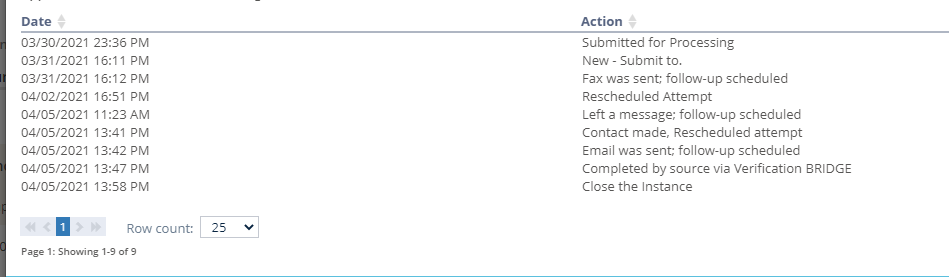
There are many different types of Actions that can be applied to a Verification as we’re completing a background. For more specifics on Actions you may see, visit Action History.
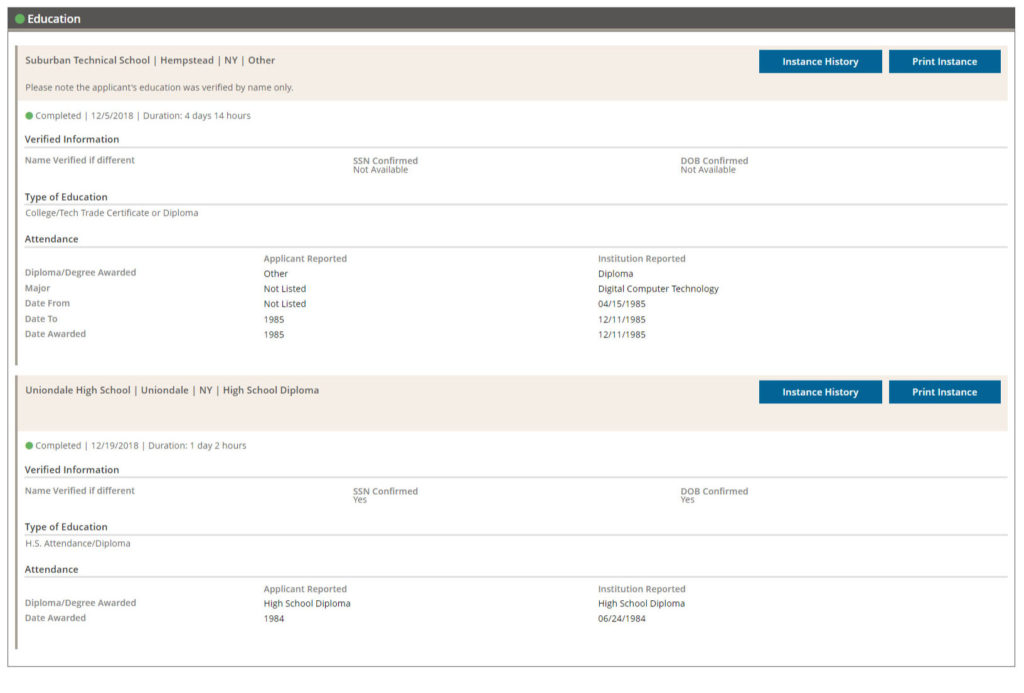
For further details on each instance, scroll down on the case summary. Note the green dot under the name of the instance. That indicates an instance has been completed. On the right side, we include the completion date (or status if in progress) and the duration of the action.
Document Management
Some customers, like those in healthcare, sometimes need primary source verification and the documentation to support. The case-level document management section includes any essential documentation relative to that verification and is accessible as a PDF. Also useful for auditing purposes.

For additional information regarding the report, please see Understanding a Consumer Report